
How to create and use product collections
Your products carry more than names and prices. Certifications, badges, promo tags, warranty notes: small text values that your customers and resellers need to see. SkuHQ calls the named place for these values product collections. This post shows how to set them up, how to fill them in, and where they end up.
What's a collection?
A collection is a named list of free-text values your products can carry: features, badges, tags or anything else. You define the list once, for example “Certifications”, and then add values to individual products. Every collection has a stable slug, a camelCase key like certifications, generated automatically from the name. The slug is what appears in the API, so it can stay the same even if you rename the collection later.
Create a collection
In the portal, go to Settings → Collections.
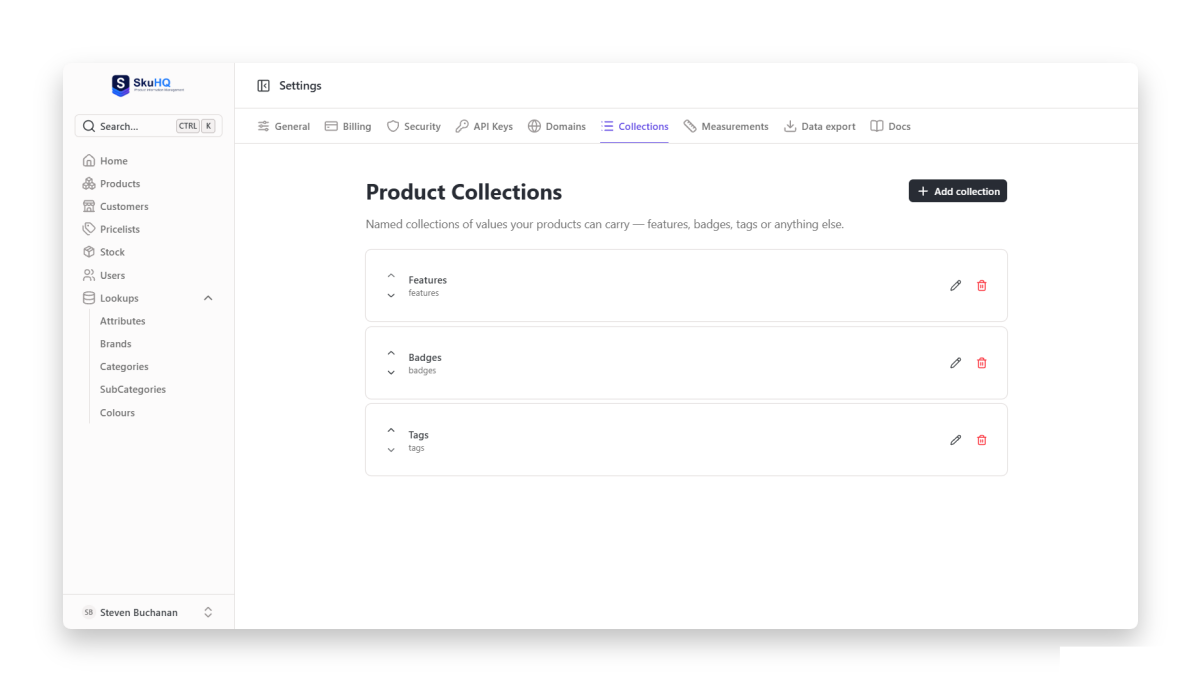
- Click Add collection.
- Type a Name, for example
Certifications. This is the label shown on products. - The Slug is generated for you (
certifications). Leave it unless you want a different API key. - Click Create collection.
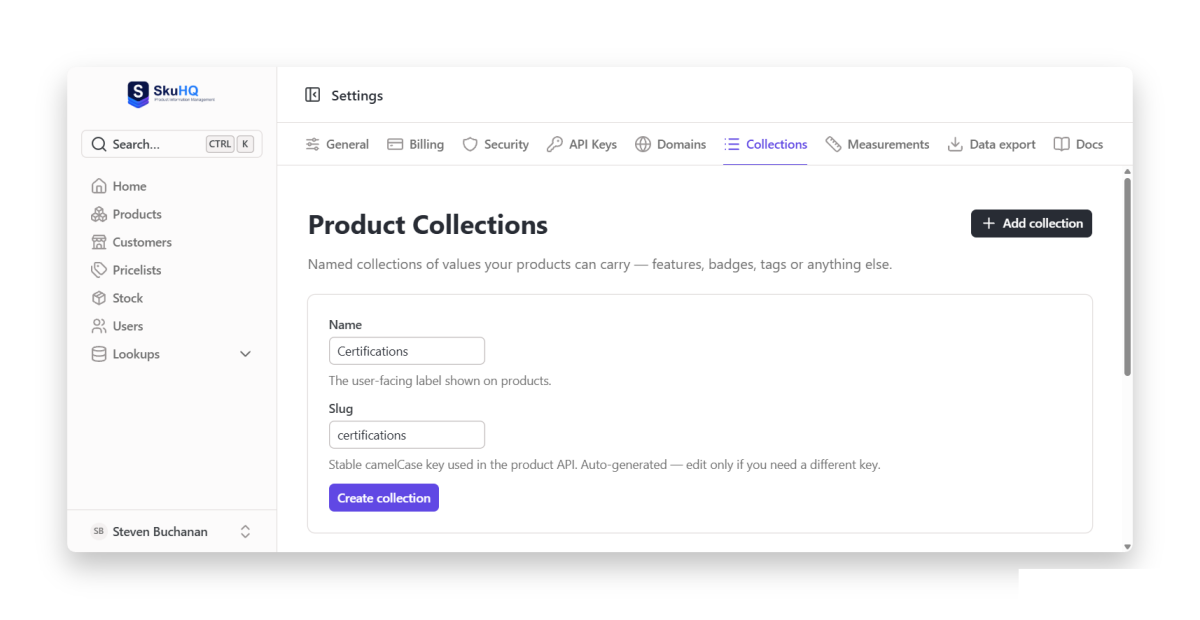
Slugs must start with a lowercase letter and contain only letters and digits; they are unique per account. A collection that is in use can’t be deleted until you remove its values from the products carrying them.
Add values on a product
Open a product and switch to its Extras tab. Each collection you have defined gets its own card there. Type a value, press Enter or click Add, and it joins that collection’s ordered list for the product.
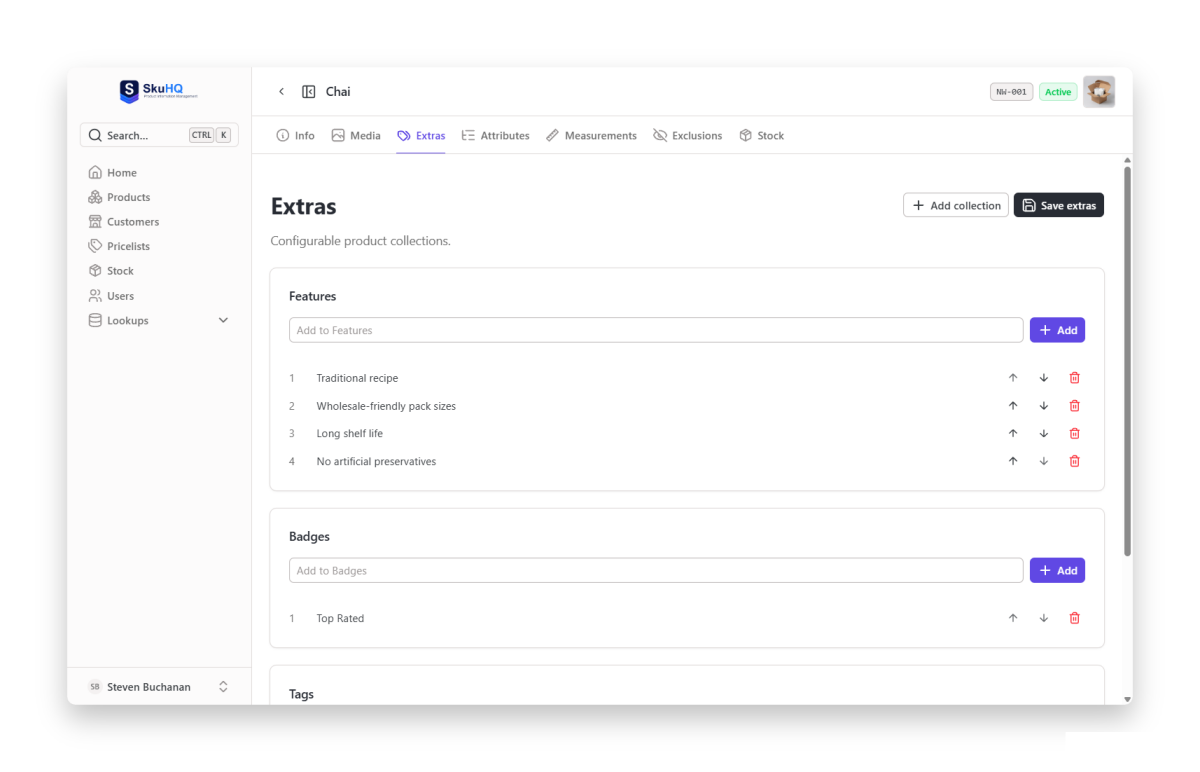
Values keep their order: reorder them with the up and down arrows, remove one with the X. When you are done, click Save extras. That’s the whole loop for one product. For a catalog-wide change, use the bulk route next.
Fill collections in bulk with CSV or Excel
If you are importing products from a spreadsheet, the importer accepts columns named collection.<slug> for each of your collections. For example, a header collection.certifications fills the Certifications collection. Put several values in a cell separated by semicolons, and they are stored in that order.
sku,name,price,collection.certifications
SHIRT-001,Long-sleeve shirt,189,GOTS;OEKO-TEX
SOCK-002,Bamboo socks,64,OEKO-TEX
Where collections show up
- The API. Every product item includes its collections, keyed by slug, in order. Consumers resolve display names with
GET /v1/collection-definitions. Resellers pulling your data through SkuFeed see exactly the same shape. - Your online catalog. On each product page of your Online Catalog, collections render as an Extras section.
That’s the idea: you define the vocabulary once, keep it tidy in Settings, and your products carry it everywhere, from the reseller API to the catalog your customers browse.
Curious how the rest fits together? What is SkuHQ? is the plain-English tour.
Create a free account and set up your first collection.