
How to create and use product attributes
Your products carry more than names and prices. Steel grades, warranty years, waterproofing, the exact type of a fitting: single facts about each product that your team, your resellers and your customers all need. SkuHQ calls the typed place for each of those facts a product attribute. Where collections hold named lists of free-text tags, an attribute holds exactly one typed value per product, backed by a definition you control.
This post walks the whole feature: how to define attributes, the four types and when to use each, how to set values on products, how the required attribute check works, and where the values end up, in the portal, over the API and in the online catalog your customers browse.
What’s an attribute?
An attribute is a typed fact your account extends its products with. You define it once, and from then on every product in your account can carry a value for it. Definitions live under Lookups → Attributes. Each definition has five parts:
- Name: the label shown everywhere a human looks: the product form, the portal products grid, your online catalog. Rename it whenever; only the label moves.
- Key: a camelCase identifier generated for you from the name (“Product Type” becomes
productType). The key is the attribute’s contract: it is what the API reports, what filters reference and what integrations match on, and it never changes. - Type: one of four kinds (below): Text, Number, Yes / No or Single select.
- Required: whether a product must carry a value for this attribute before it can be published.
- Display order: where the attribute sits in the product form and in lists, so your most important facts appear first.
Attributes and collections are complements, not rivals. A collection is a named list of free-text values whose order carries meaning, like Certifications holding GOTS and OEKO-TEX in sequence. An attribute is a single, type-checked fact. Badges, tags and certificate lists go in collections; facts like a steel grade or a warranty period go in attributes.
The four types
Attribute types are deliberately small: exactly four, each stored and validated according to its kind.
- Text: a single line of free text, for facts that vary too widely to enumerate: a steel grade (
316L), a model code, an alloy name. Values are checked to be text, and that is the whole rule. - Number: a numeric fact stored as a number, not a string, so
Warranty yearsholds5the way a database wants it. Filters can compare numbers, not merely match them. - Yes / No: every claim your catalog makes as a strict boolean.
Waterproof,Food safe,Recyclable. - Single select: one value chosen from an option list you define, so a Fitting type attribute offers Flange, Elbow and Coupling and nothing else. Stored values reference the option rather than a copied string, which makes options rename-proof: change “Elbow” to “Elbow 90°” and every product carrying it is re-labelled for free.
Choose the narrowest type the fact allows. A number earns its keep by being sortable and comparable; a select earns its keep by making invalid values impossible. If a fact might someday be charted or filtered with comparison operators, don’t define it as text.
Create an attribute
In the portal, open Lookups → Attributes in the sidebar. The page lists every attribute on your account: Name, Key, Type, Required (a “Required” or “Optional” badge) and Options for select attributes. A filter box at the top narrows the list as it grows.
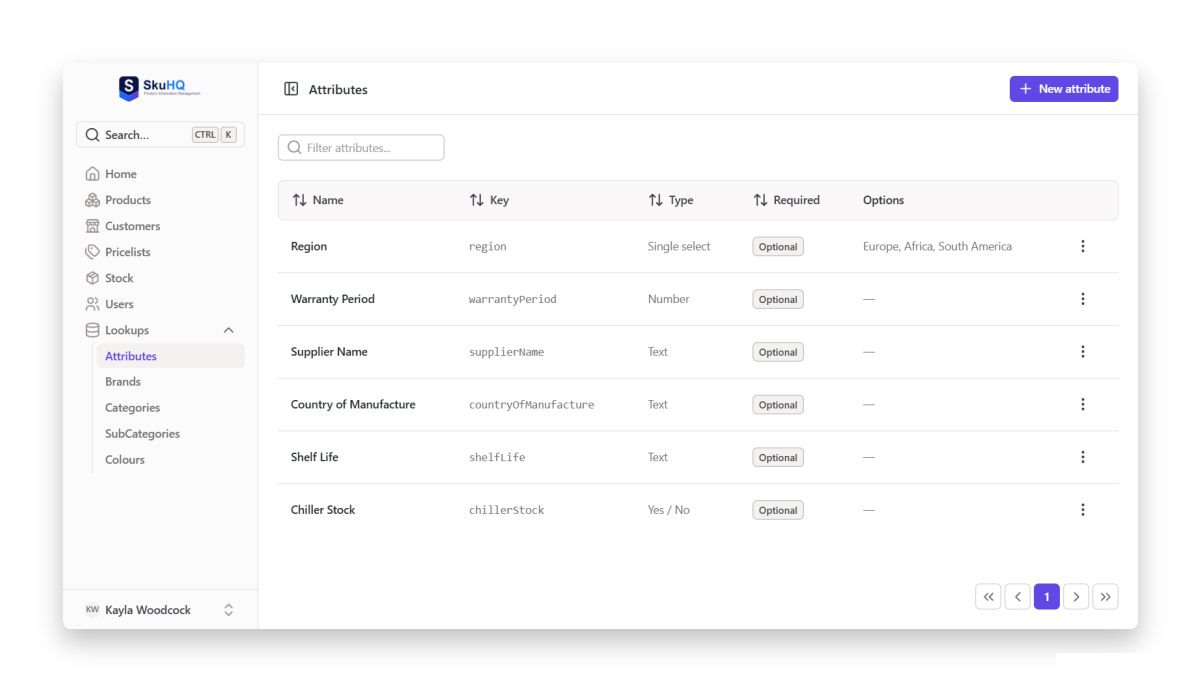
- Click New attribute.
- Type a Name, for example
Product Type. - The Key is generated for you (
productType). It locks the moment the attribute is created, so pick a name you can live with. - Choose the Type. For a Single select, an Options block appears: click Add option for each choice, in display order.
- Set Display order to place the attribute among the others.
- Flip Required on only for facts no published product should lack.
- Click Create (or Save when editing an existing one).
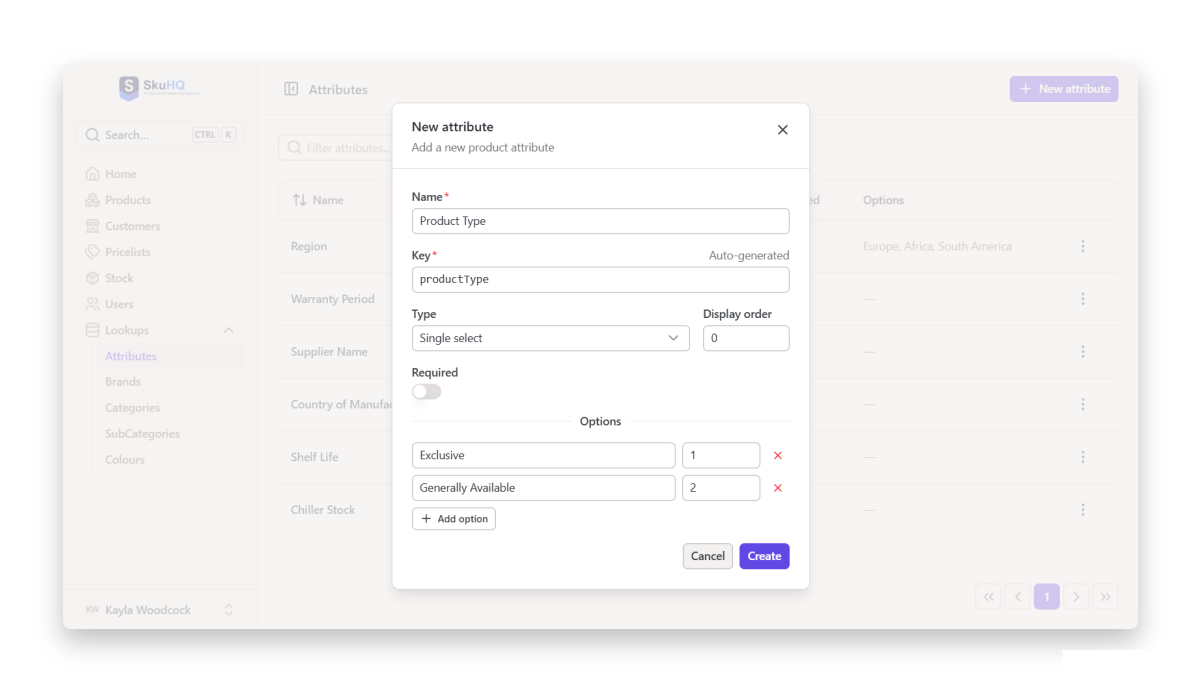
Conveniences around the list: creations toast “Attribute added” and edits toast “Attribute updated”, and each row menu holds Edit and Delete. The delete button carries a warning worth heeding: Attributes still used by products cannot be deleted.
Rules worth knowing
A few constraints shape how you set definitions up. They are enforced in the database itself, so they bind the portal, the API and anything else that writes to your account:
- Keys never change. The key is the contract every consumer references. Labels are yours to reshape; keys are forever.
- Type locks with first use. Until a product carries a value for the attribute, you may still change its type, say from Text to Single select once you realize the values repeat. After a first value is stored, the type is fixed, because every stored value is stored according to its defined kind.
- Used attributes cannot be deleted. Clear the values from your products first, then delete the definition. A definition nobody has used yet deletes freely.
- One value per product, per attribute. A product carries either zero or one value for each definition; duplicates don’t exist.
Set values on a product
Open any product and switch to its Attributes tab. Every attribute you have defined appears there, in display order, as the input its type calls for: a text box for Text, a number field for Number, a Yes / No choice for booleans and a select menu of your option labels for Single select. Attributes marked required are flagged on the form itself.
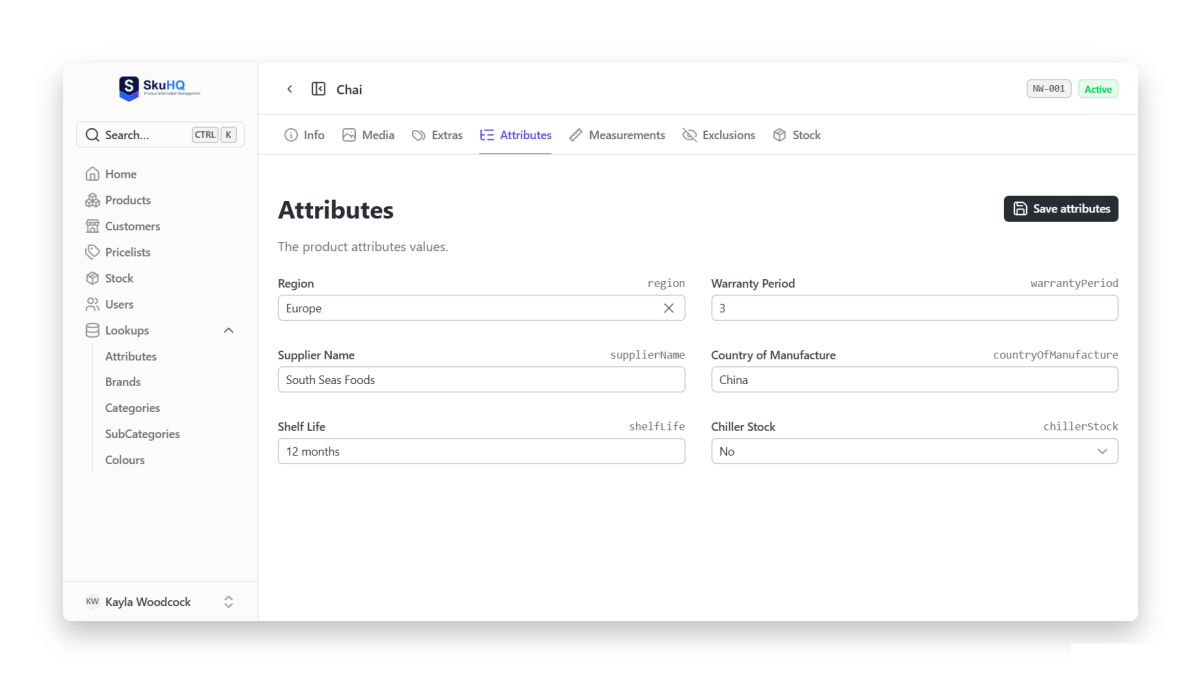
Type the values, click Save attributes, and the product carries them. Every value is validated against the attribute’s type before it is stored: numbers must be numbers, and select values must be one of the defined options. If your account hasn’t defined any attributes yet, the tab shows a hint that it’s time to define some.
Required attributes are checked at publish
Required is deliberately lenient at first. You can save drafts and partial products without filling required attributes, so a long capture session never blocks on missing facts.
The gate is publish: when a product moves from draft to active, SkuHQ checks that every required attribute on the account carries a value for that product. If one is missing, the product stays where it was, and the message names the missing attribute and says where to fill it in.
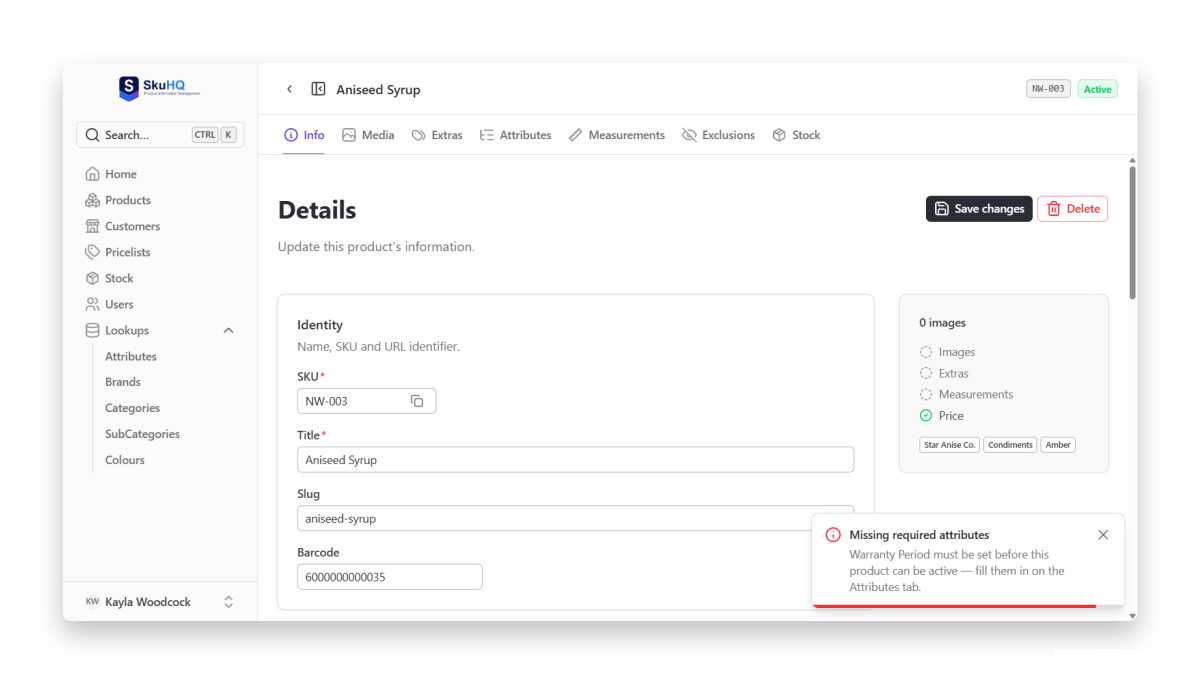
The split keeps both sides honest: work in progress stays work in progress, and what reaches your catalog and your resellers is complete by your own rules.
Find products by attribute
In the portal products list, Add attribute filter narrows by any attribute on your account. The filter control is shaped by the type: type text exactly, compare a number, flip Yes / No, or pick an option label. Combine one with your usual brand, category and status filters to slice the list down to, say, only products in the Europe region.
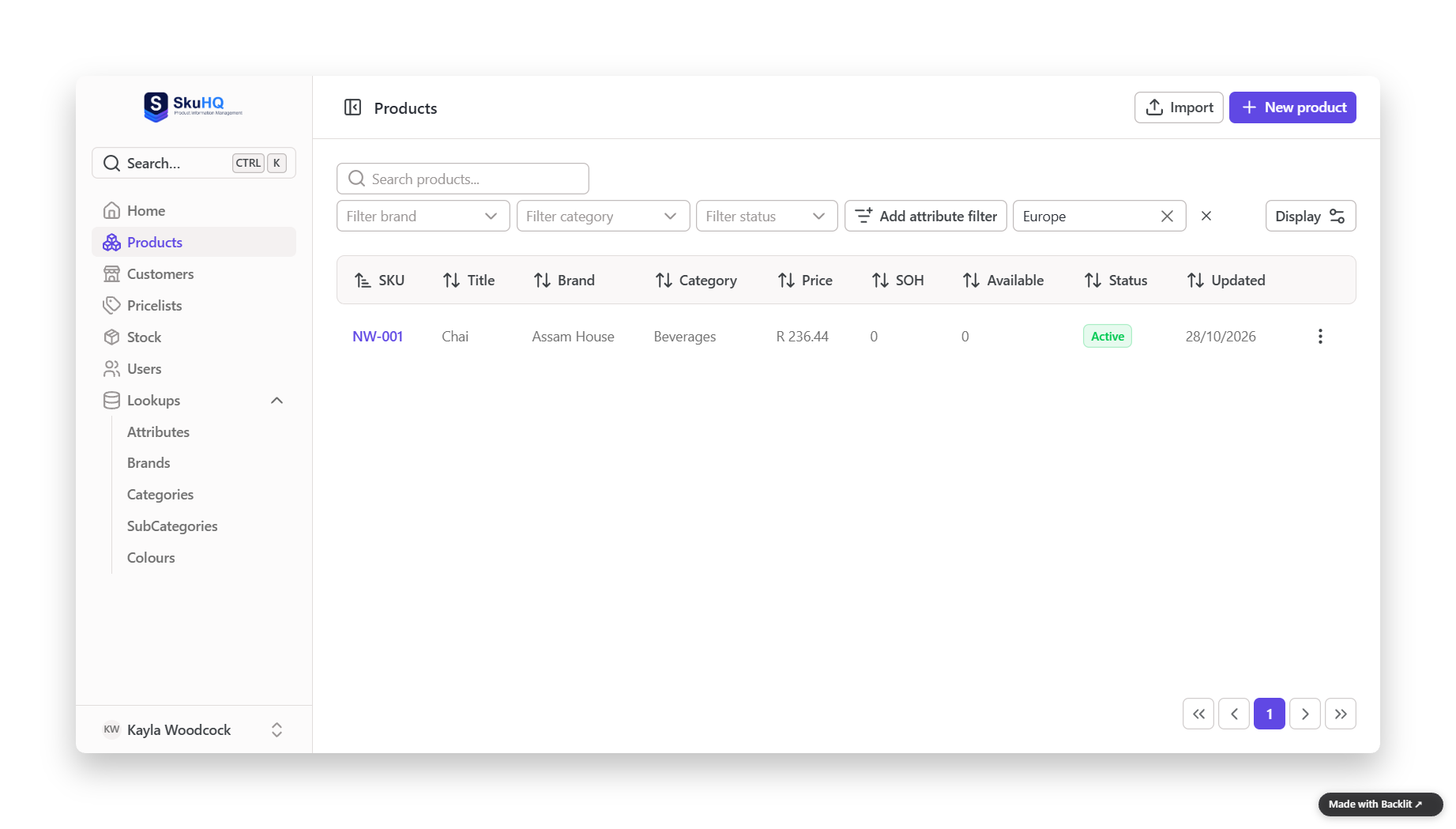
The same filtering exists in the API. The product list endpoints accept attr.<key>=<value> parameters that match on attribute values:
GET /v1/products?attr.steelGrade=316LOne shape note: attr. filters match on equality today, so a single option label or exact number; multi-select matching and numeric ranges are not part of the filter yet.
The API
Attributes are first-class over the API, not portal-only:
- Definitions.
GET /v1/attributesreturns every definition on the account, each with its key, name, type, required flag, display order and options.POSTcreates one (a key with the products write scope),PUTrenames, reorders and manages the option list, andDELETEremoves a definition no product uses. Creating a key that already exists, or deleting an attribute that still has values, answers 409 with the reason. - Values on every product. List responses carry
attributeValues, a slim map of attribute key to labelled value, ready for grids and feeds. Detail responses (GET /v1/products/{sku}) also carry a self-describingattributesarray:
[
  {
    "key": "productType",
    "name": "Product type",
    "type": "single_select",
    "value": "Flange"
  },
  {
    "key": "steelGrade",
    "name": "Steel grade",
    "type": "text",
    "value": "316L"
  },
  {
    "key": "warrantyYears",
    "name": "Warranty years",
    "type": "number",
    "value": 5
  },
  {
    "key": "waterproof",
    "name": "Waterproof",
    "type": "boolean",
    "value": true
  }
]
Because the type travels with the value, a consumer can render every attribute correctly without knowing your definitions in advance.
Your online catalog
Shoppers meet the attributes where they count. On each product page of your online catalog, an Attributes section renders the values with display names and resolved option labels, and the catalog honors attribute filters, so a customer can hunt for exactly the waterproof options without emailing you.
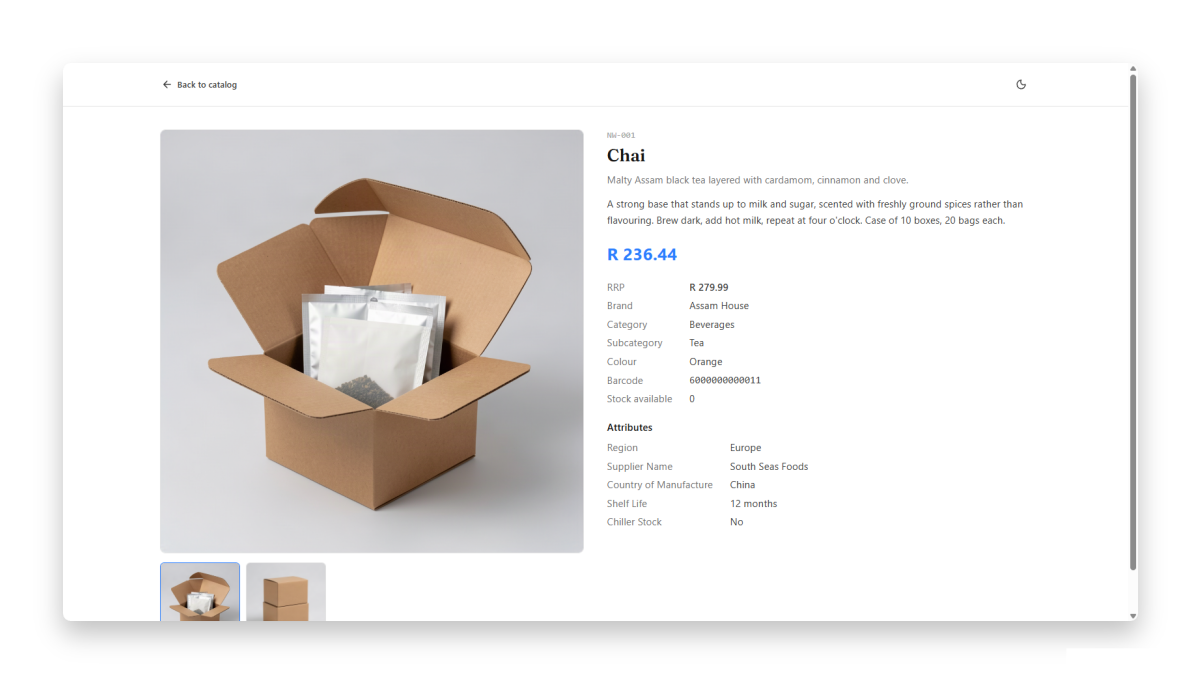
None of this takes extra work per product once definitions exist. Publish carries the values along.
About imports
One gap to know about as you plan your setup: the spreadsheet importer’s template carries columns for collections, measurements and safety stock, but attribute columns are not part of it yet. To bulk-set attribute values today, use the product form, or bring values in over the API. Once definitions exist, filling them in is quick work, because every attribute has one typed input in a fixed order.
Where attributes show up
- The API. Definitions at
GET /v1/attributes; values on every product, in the slim map on lists and the self-describing array on details; filters via?attr.<key>=<value>. - Your online catalog. Product pages render an Attributes section, and the catalog honors attribute filters.
That’s the feature in one line: define the vocabulary once, with a type behind each fact, and every product carries it consistently, whether it is being filtered in the portal, matched over the API, or browsed on the catalog by a customer who wants to know whether the thing is waterproof.
Curious how the rest fits together? What is SkuHQ? is the plain-English tour.
Create a free account and define your first attributes.